
Getting Started With the NATAO Community Forum
Welcome to the NATAO community forum! This quick start guide is designed for members who may be new to member forums or unsure how to get started. No technical skills are required — we’ll walk you through it step by step. If you’ve never posted on a forum before, you’re in the right place.
Logging In
Before you can interact with the forum, you must be logged into your NATAO account. If you are seeing a message that NATAO membership is required to access this content, please use the login button in the upper right-hand corner to log in with your user ID and password. If your login is successful, you should see your username in the upper right corner instead of the login button.
Understanding How the Forum Is Organized
Forums are structured in layers. Understanding this structure makes everything else much easier.
Forum Structure Overview
• Categories – These that serve as broad groupings based on a category. The NATAO community has categories for Community Updates, TAOs, Animal Topics, and Regions.
• Forums – These are sections inside each category where related conversations live. Think of forums as folders that hold discussions about a specific subject.
• Topics – These are individual conversations started by users inside a forum. Each topic focuses on one specific question or subject.
• Posts (Replies) – These are individual messages within a topic. The first post starts the topic, and replies are additional posts that people add to answer questions, share their thoughts, or continue the conversation.

Finding the Right Place to Post
1. Go to the main NATAO Community page
2. Look for a category that matches your interest
3. Inside that category, click on a forum
Once you are inside a forum, you will see a list of existing topics and a button to create a new one.
Creating a New Topic (Starting a Discussion)
Creating a topic means starting a brand-new conversation inside a forum. This is the first step when you have a question, idea, or message you want to share with the community. Each topic is focused on a single subject, so other members can easily read, understand, and respond. Think of a topic as the “container” for your discussion, where your first post begins the conversation and all replies from others are collected underneath.
Steps to Create a Topic
1. Make sure you are logged in
2. Navigate into the correct forum
3. Click New Topic in the upper right above the existing topics

4. Enter a title for your topic. Use a clear and specific title that describes your question or discussion so others can understand it at a glance.
5. Write your message in the large text box
6. Use formatting tools if you want (bold, links, lists, etc.)

7. Click Add Topic at the bottom of your topic window to submit your topic.

After submitting, your topic will appear in the forum and other members will be able to reply.
Topics live inside forums so that discussions stay organized by subject. If you do not see a button to create a new topic, it usually means you are still viewing a category. Categories are only used to group forums. They act like groupings or headings, not places where conversations happen. Click into the forum that best matches your question or discussion, and then you will be able to start a topic there.
Writing a Good Topic Title
A clear title helps others understand your question or comment right away.
Good examples: – “Getting raffle donations for a fundraiser”, “Minimum age for human handlers?”
Less helpful examples: – “Please help”, “Question”
Replying to an Existing Topic
Replies are used to respond within an existing discussion.
Steps to Reply
1. Open the topic you want to respond to
2. Scroll down to the reply section
3. Place your cursor in the reply box
4. Type your response
5. Click Add Reply
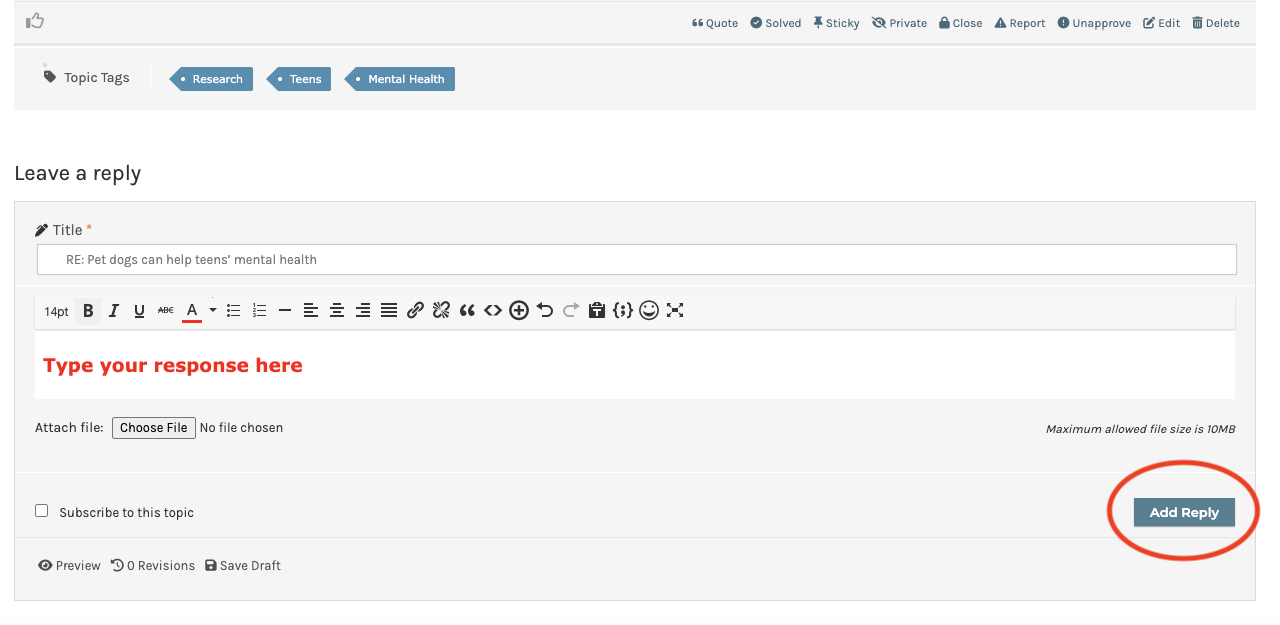
Your reply will appear beneath the previous responses.
Note: You can change the title but it’s generally a good idea to keep the same title as the original post.
Adding Images or Attachments
The forums allow image or file uploads to a post.
• Underneath the text window of the post your will see a button labeled Choose File
• Click the button and select a file from your device
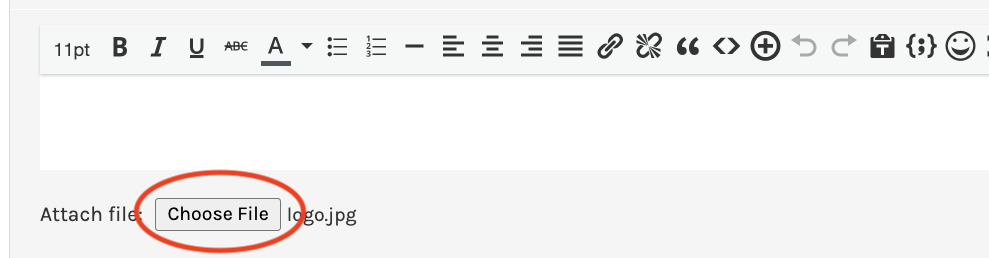
The file will be a clickable link for users that is attached to your post after it has been submitted.
Editing Your Own Posts
You can edit your own post after posting.
To Edit a Post
1. Find your post in the forum.
2. Click Edit

3. Make your changes
4. Save or update the post
Your User Profile
Click on My Profile to open your community profile.
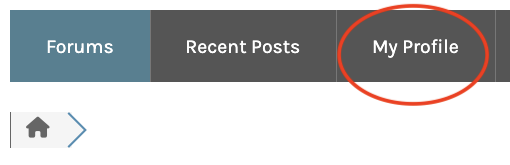
On your profile page, you can:
• Share your personal details
• Upload or change a profile photo
• View your topics and replies
• View topics you have favorited to follow or subscribed to
Subscriptions and Following Topics
Subscriptions let you stay up to date with activity that is interesting to you. You can subscribe to an entire forum or to individual topics and receive email notifications when new posts or replies are added. When you enable a subscription, you’ll receive email notifications when someone replies.
There are two ways to create a subscription:
1. When you are on a forum page you will see the option to subscribe for updates. You will receive an email asking you to confirm your subscription.
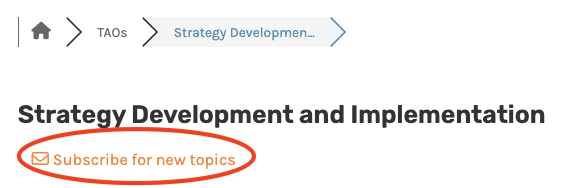
2. You can subscribe to multiple forums at once in your user profile. You can subscribe to receive updates when both the topics and forum have changed, or just new forum posts have been created. Click the items you would like to subscribe to and click Update Subscriptions to save your changes.
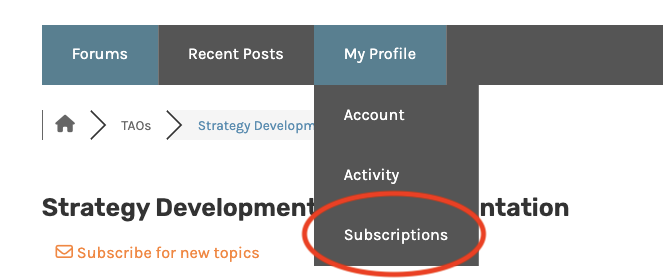
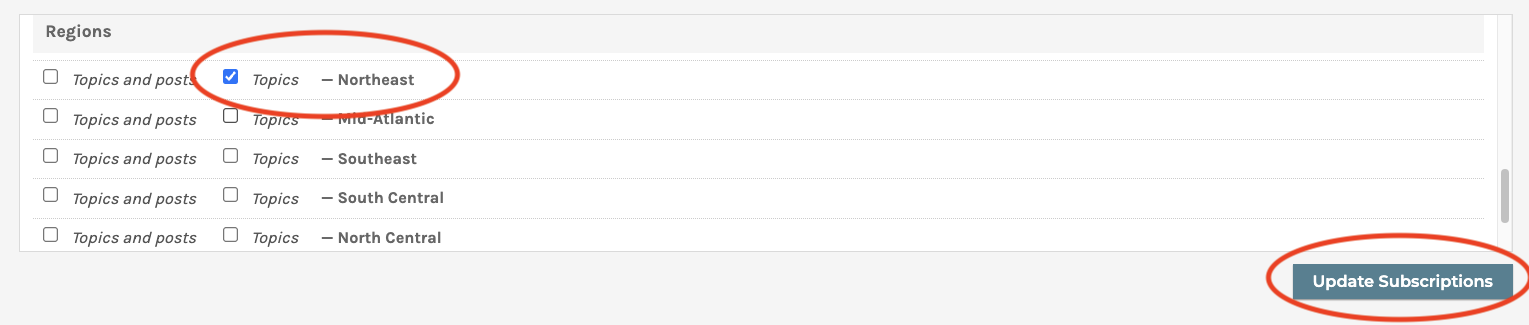
You can see topics you have subscribed to in the Subscriptions area of your profile. If you would like to unsubscribe to a forum or topic you have subscribed to, click the bell shaped icon on the far right. Please note that subscriptions will not appear in your profile until you have confirmed the subscription confirmation link that is sent by email.

Forum Etiquette and Community Guidelines
We appreciate you keep the community welcoming to everyone. A code of conduct for the community is available on the NATAO site.
Need Help?
If you run into trouble, please reach out for assistance – we’re here to help. You can use the Contact Us page on the NATAO website or email us directly at forum@natao.community.
When reporting a technical issue, please include what you were trying to do, where it happened (link or topic name), any error messages or screenshots, and details about your browser and device.